In order to give a new price to only one item, it is important to do this directly in the detail view of the item. In the column SP 1, SP 2 or PP, simply enter the new price and save the changes. But price adjustments of several items will be child’s play in Ingenious.V12, owing to the function, “Execute Price Changes”. Simply open and highlight the desired items and implement the menu item, “Execute item/Price Changes”, enter the price adjustment, finished! It is nearly just as easy to execute the price adjustments with two-dimensional price lists (price matrixes). In each case, an example exercise follows.
Practice adjusting prices of multiple items
When making a price adjustment for multiple items, you should use the function, “Execute price change”.
1. Search for “Motor 520 R2*” and select the items.
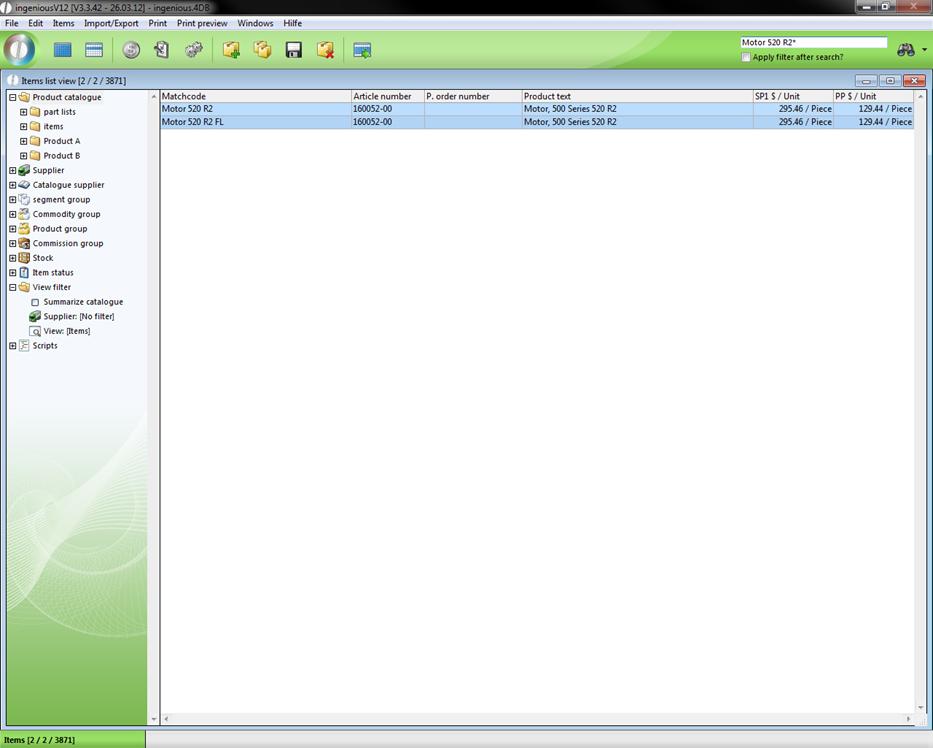
2. Select the menu item “Items / Execute Price Change”
A window for the entry of the price change appears. Here you can select which price (SP 1, SP 2, PP) you want to raise or reduce at which percent.
3. In the SP 1 field in the area, “Raise in %”, enter a -11.5. You thereby reduce the current sales price of the item by 11.5 percent.
Attention: If you want to raise the prices, you must enter 11.5 (without the minus), for example.
4. You want to specify the rounding rules for your prices yourself. Thus click on the area, “Rounding Parameter” on the first cell in the column, “Up to price”. Since your current SP 1 lies at 442.68 $, it will be at 442.67 $ after the price reduction. Enter the value “442.68” in the first cell of the “up to price” column and the value “442.67” in the second. In the third column, you can select one of three options from a pop-up window (“bus. Rounding” “Round up” and “Round down”). Select the option “Round off” here.
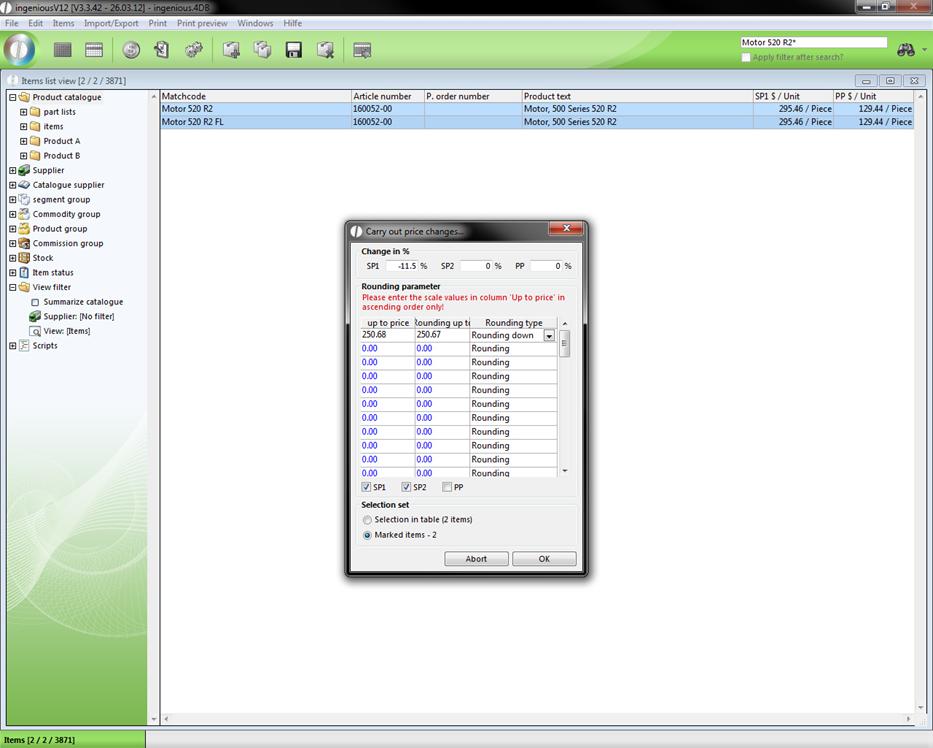
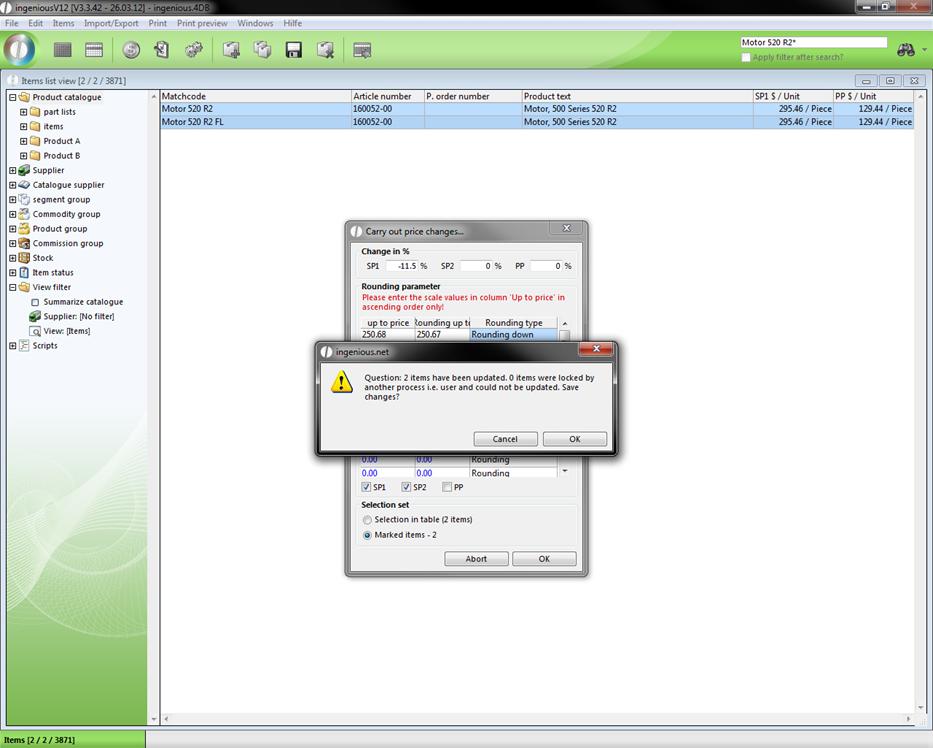
5. Click on the “OK” button in order to execute the price change and confirm the inquiry window that appears.
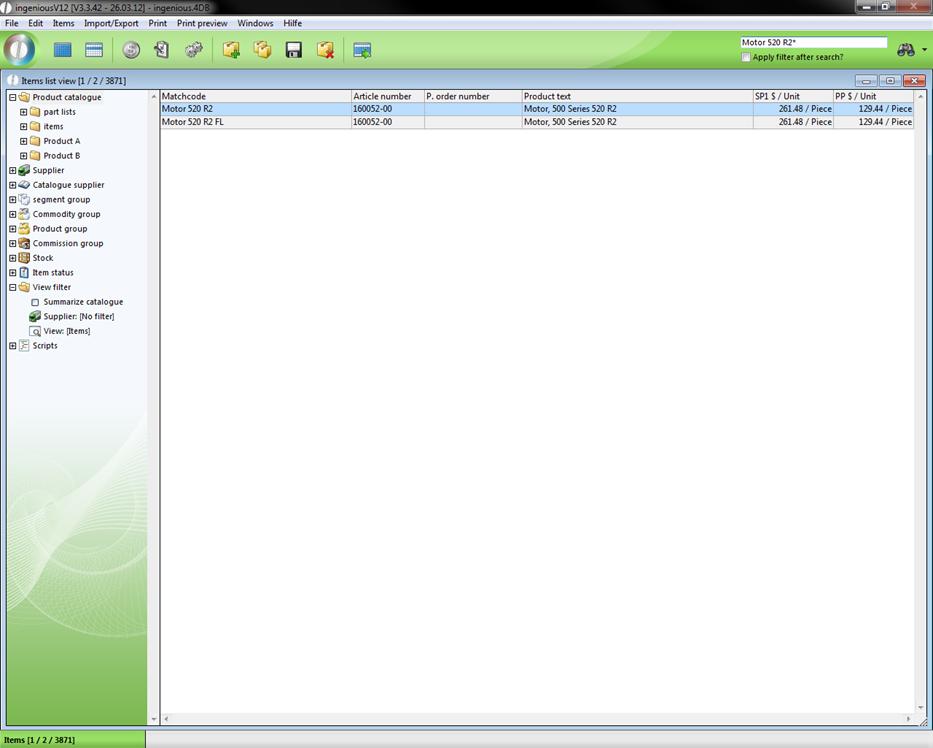
As requested by you, the price of the item is now reduced to 442,67 $ by 11.5 percent.
Practice price adjustments with a 2-dimensional price list
The price adjustments of a 2-dimensional price list are almost as easy as that of a single item. In this exercise, you should raise the prices of the SP 1 by 1.2 percent.
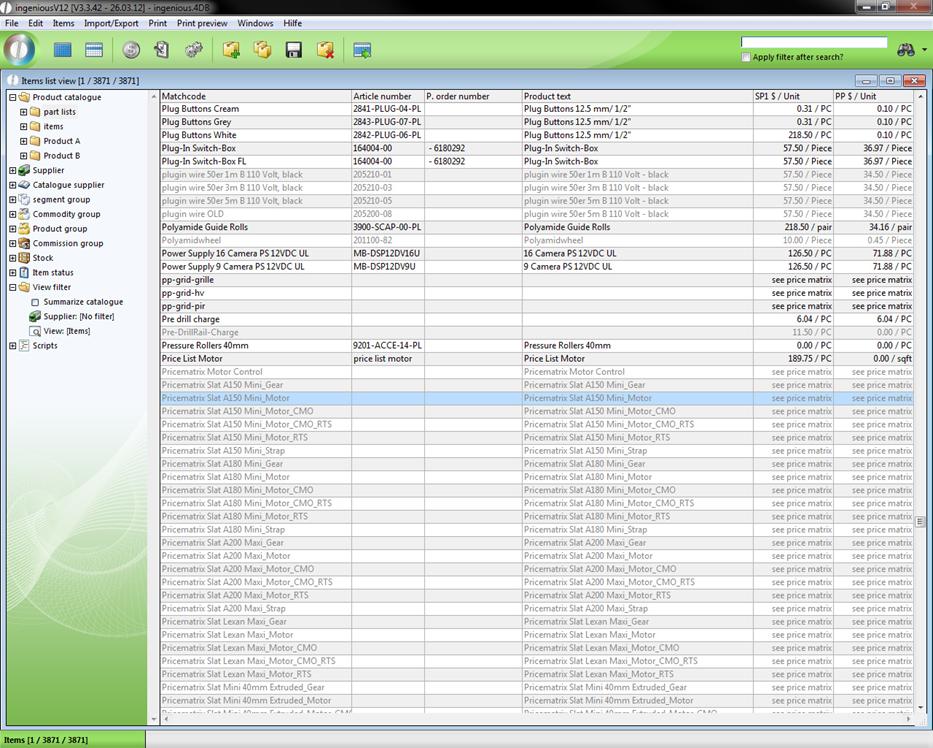
1. Open the detailed view of the imaginative item with the matchcode “Pricematrix Slat A150 Mini_Motor"
2. Switch to the column, “PP” and click on the  button.
3. In the input field, enter the value 1.2 and choose the entry “Add% (from 100)”.
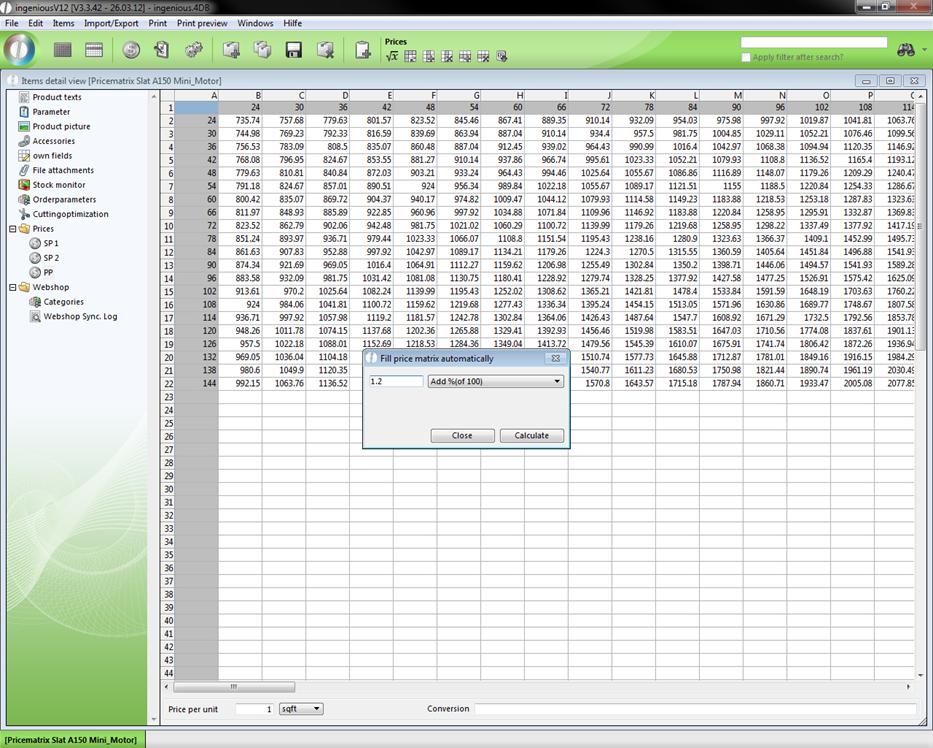
2-dimensional price list before the price increase
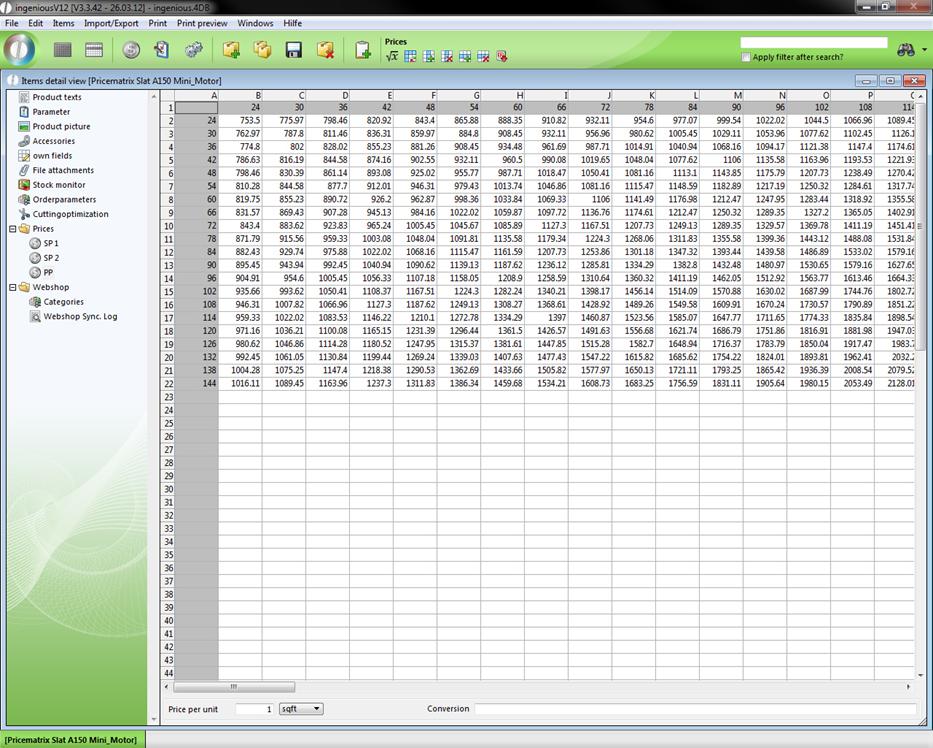
4. Click on “Calculate” to start the action. The 2-dimensional price list looks as follows:
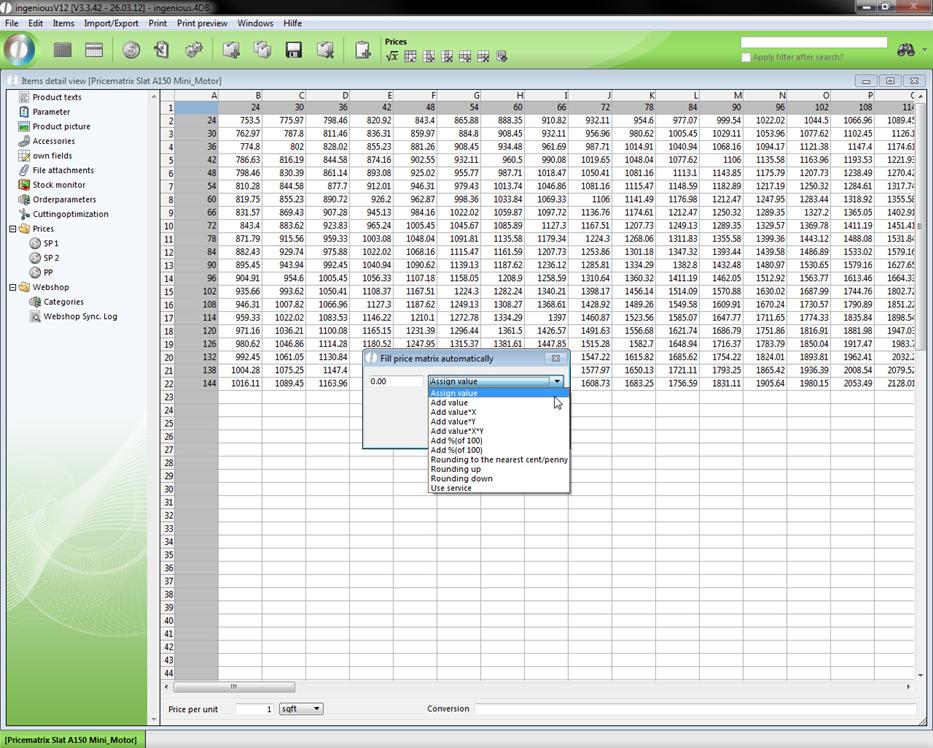
Note: Other calculation functions are of course also available to you.
5. If you want to determine the scale values again, simply enter the desired values in A1, e.g.: 100 (beginning values)/10 (steps/200 (final value).
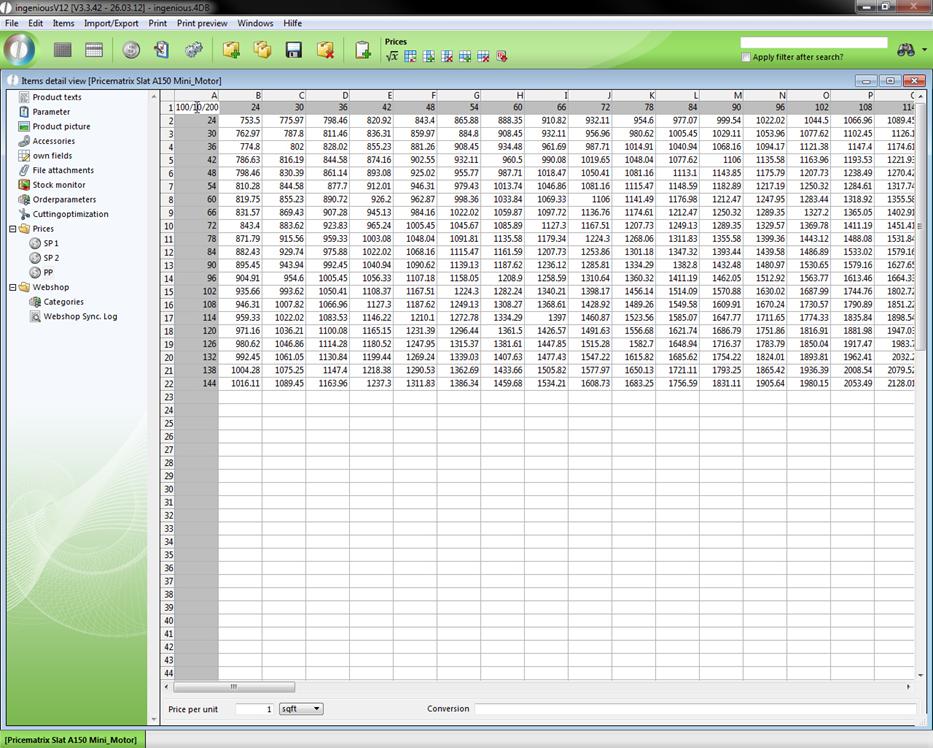
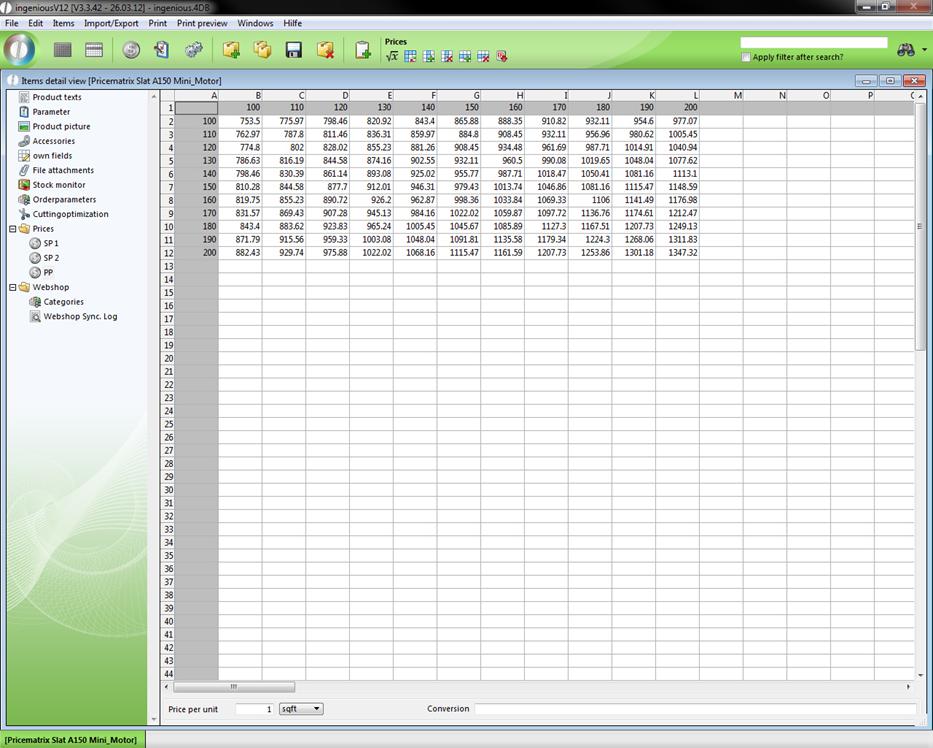
An especially interesting function which saves a lot of time is hidden behind the entry “Use Service” (a service is in Ingenious.V12 a product, e.g., shutter which exists of various individual parts and is produced in different variations).
6. Click on and select the option, “Use Service”. In the service area, enter “D-Kupa 7/37”and click on “Calculate”.
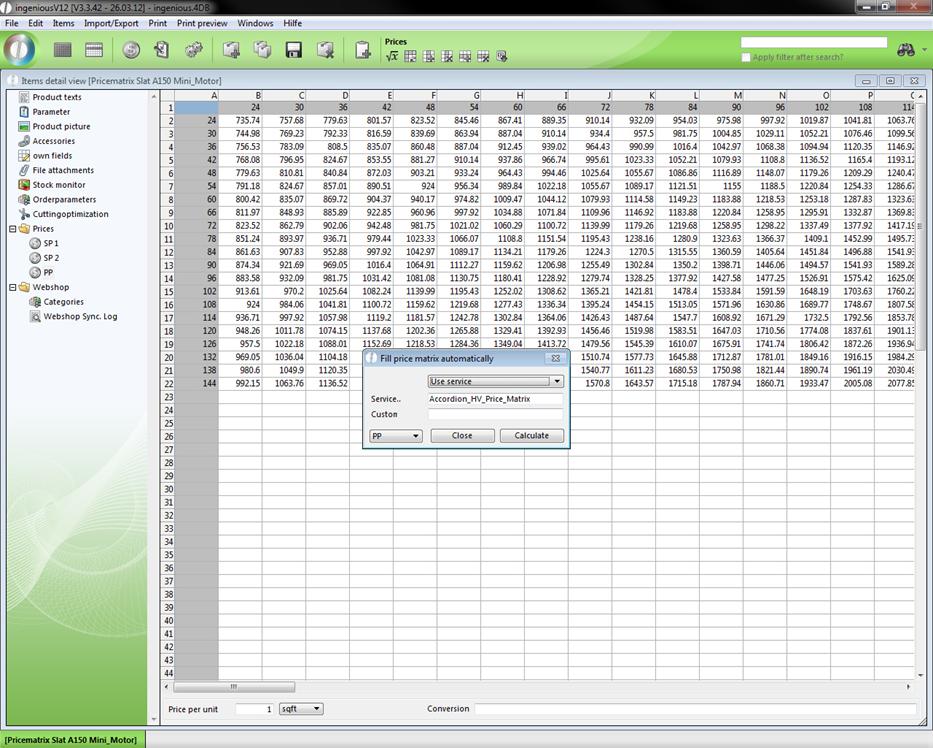
Ingenious.V12 will now calculate all necessary values
And will carry them over to the spreadsheet.
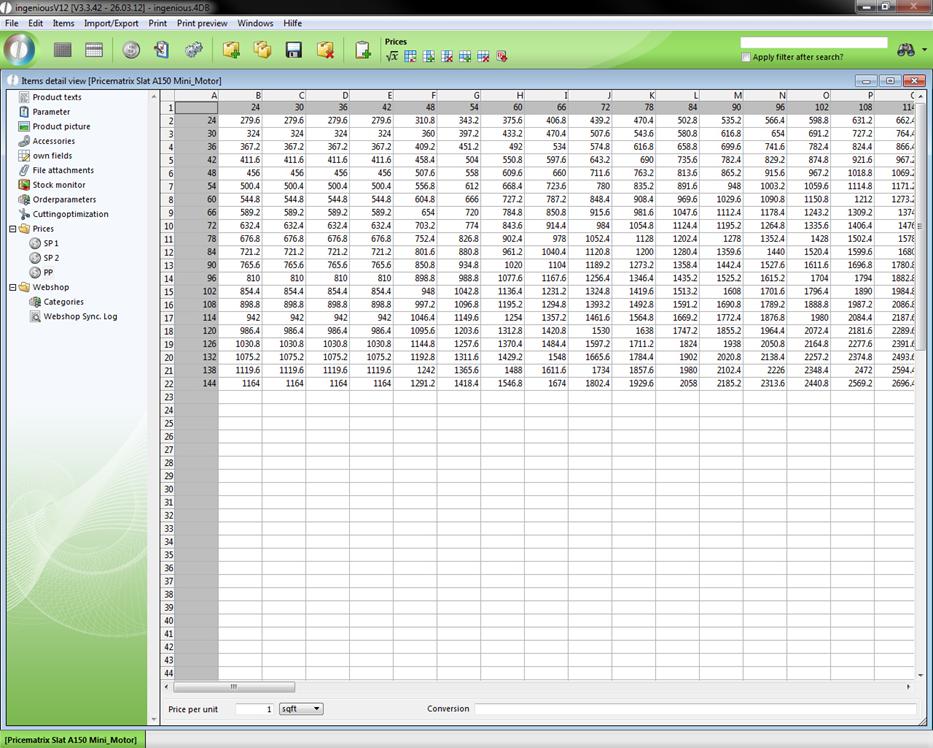
Price lists from Ingenious.V12 can be also copied. Highlight the desired cells and press the key combination Ctrl + C. You can now insert the copied cells into Ingenious.V12. You can do this for instance, in the sales price SP. Here click then on the cell A1 and insert the copied cells with Ctrl V.